Manage machines
Machines
See every machine, its status and address, and rename, move, deactivate or remove one.
A machine is a computer in your account: a Mac or a Linux machine. Machines in the Console lists yours and, in a team, the team's machines you can use.
#The list
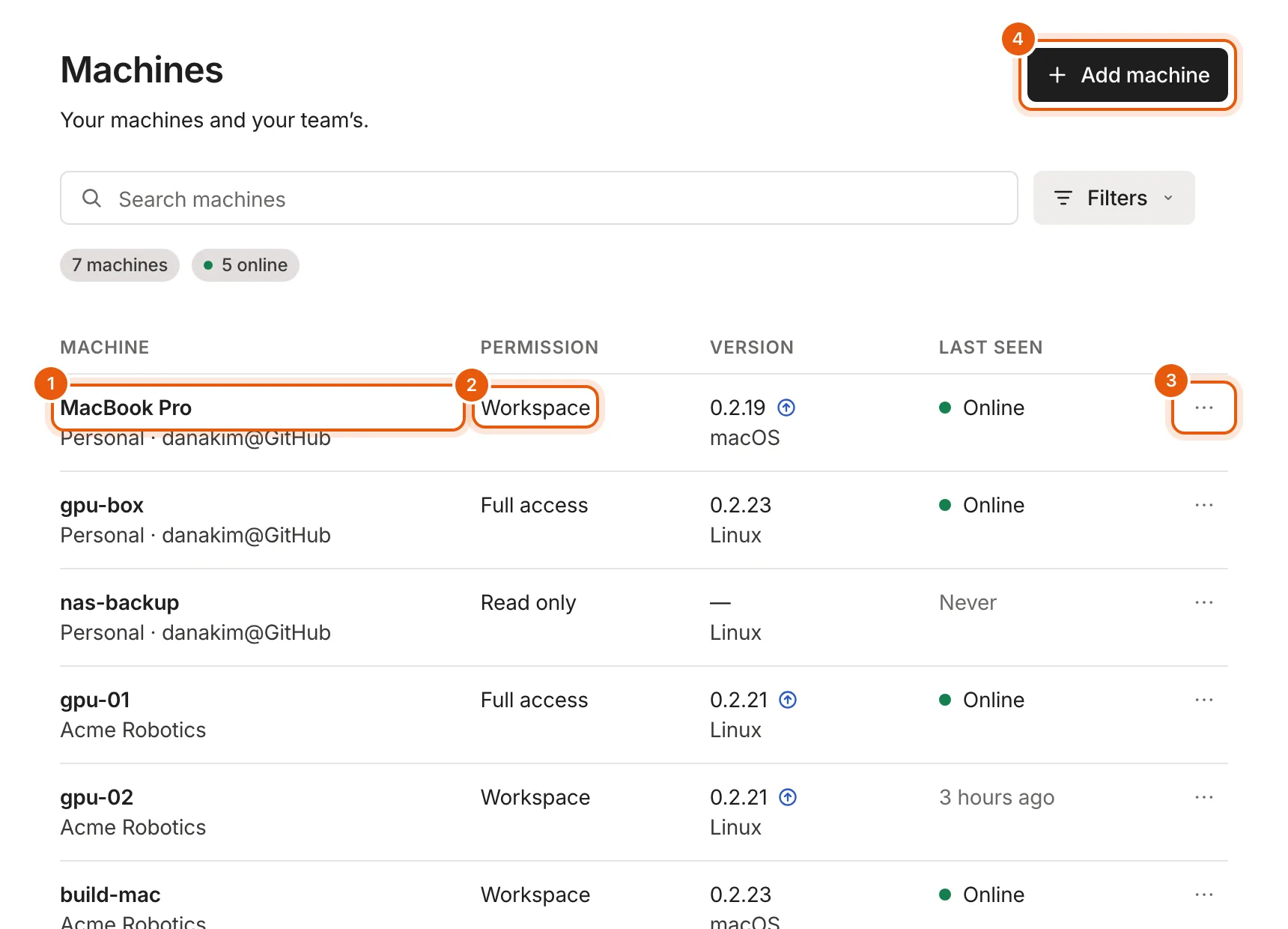
- The name opens the machine's page. Under it: Personal for yours, or the team's name.
- Permission is what agents may do on it. See Permissions.
- The menu at the end of the row has the machine's actions.
- Add machine adds a Mac or a Linux machine. See Install on a Mac or Install on Linux.
Version shows the version the machine runs, with an arrow when a newer one exists. Last seen says whether it is online now, or when it last was. Search and Filters narrow the list by status, system or owner.
#A machine's page
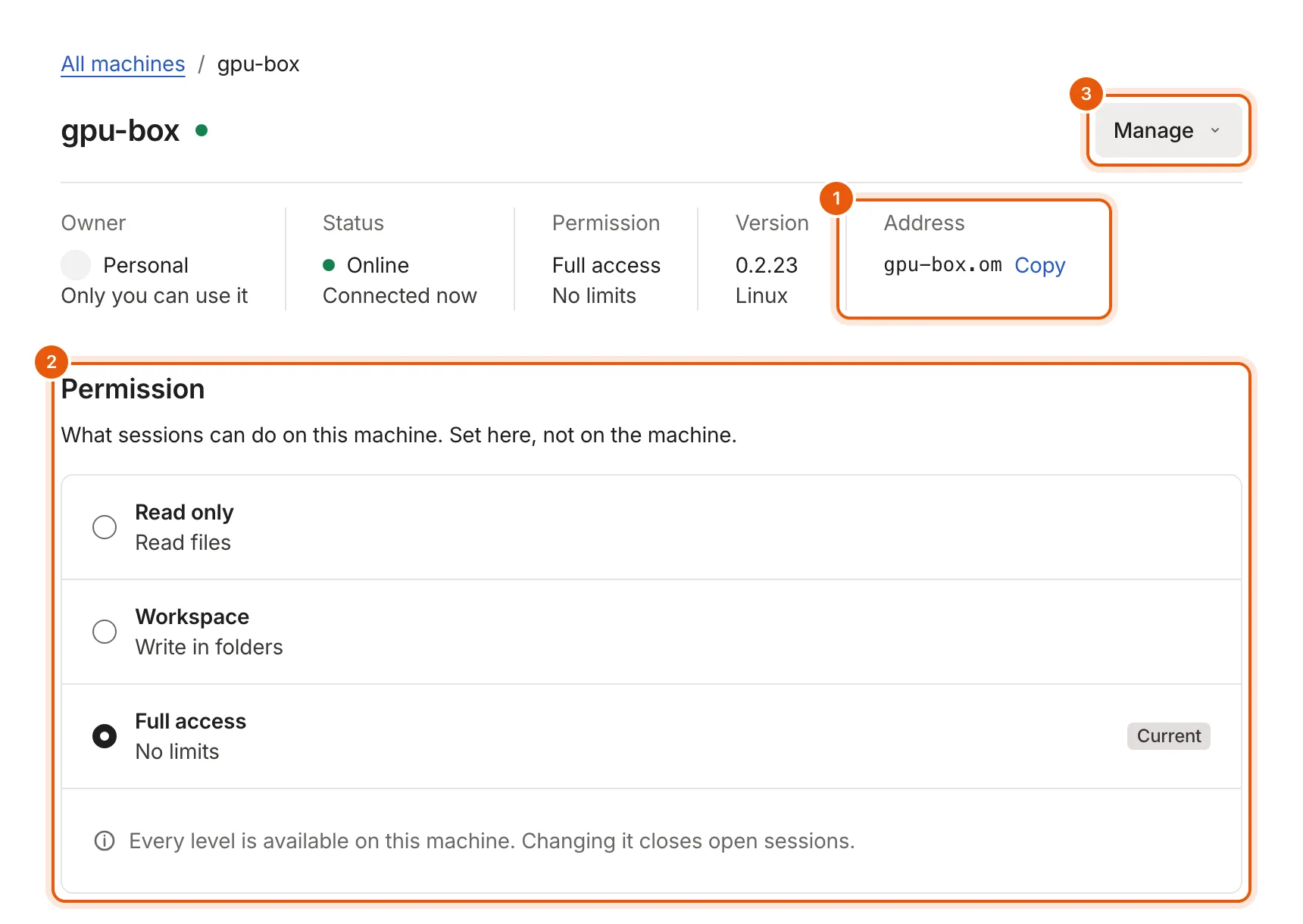
- Address is the name agents use with
ssh. Copy copies it. - Permission sets what agents may do: on a Linux machine, here. A Mac sets it in its app.
- Manage has the machine's actions.
In a team, once your own machine could connect to the team's machines, or use their AI models, its page also says whether it can: Allowed, Waiting for approval or Blocked. See Approve new machines.
Further down, Machine details shows the full SSH command, with the machine's user, and the machine's key fingerprints for checking.
#Addresses
| Machine | Address |
|---|---|
| Yours | <name>.om, such as gpu-box.om |
| A team's | <name>.<team>.om, such as gpu-01.acme.om |
An address never moves to another machine and is never reused.
#Status
| Status | Meaning |
|---|---|
| Online | Connected now. |
| Offline | Not connected. Last seen says when it was. |
| Never | It has not connected yet. |
| Unknown | Open Machine cannot read its status right now. |
| Deactivated | Signed in, but nobody can connect to it. |
To update a Mac, open the app on it. A Linux machine updates itself; its page also offers Update now.
#Manage a machine
| Action | What it does |
|---|---|
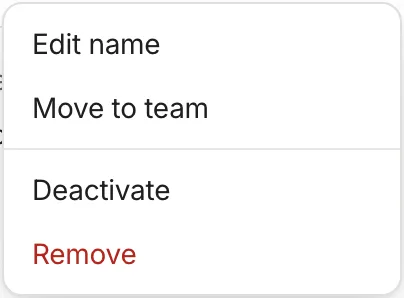
| Edit name | Changes the name shown in the Console and the app. The address stays the same. |
| Move to team | Moves an online Linux machine between your account and a team you are an admin of. See Move. |
| Deactivate | Keeps the machine signed in and its settings, but nobody can connect to it until you reactivate it. |
| Remove | Signs the machine out of the account for good. Nobody can connect to it again. Programs already running on it keep running. To use it again, add it again. |
#Move
The machine signs in again on its own, keeps its name, and starts as a new machine there: Read only and, in a team, open to everyone. Moved to your own account, a team's machine is a new machine there, so it waits when the team approves new machines. A refused move leaves the machine where it was. To move a Mac, sign out in the app and sign in again into the other account.
#Keys
A key adds Linux machines with one command and no browser. Add machine creates one for you; Machines → Keys lists the keys that can still add machines.
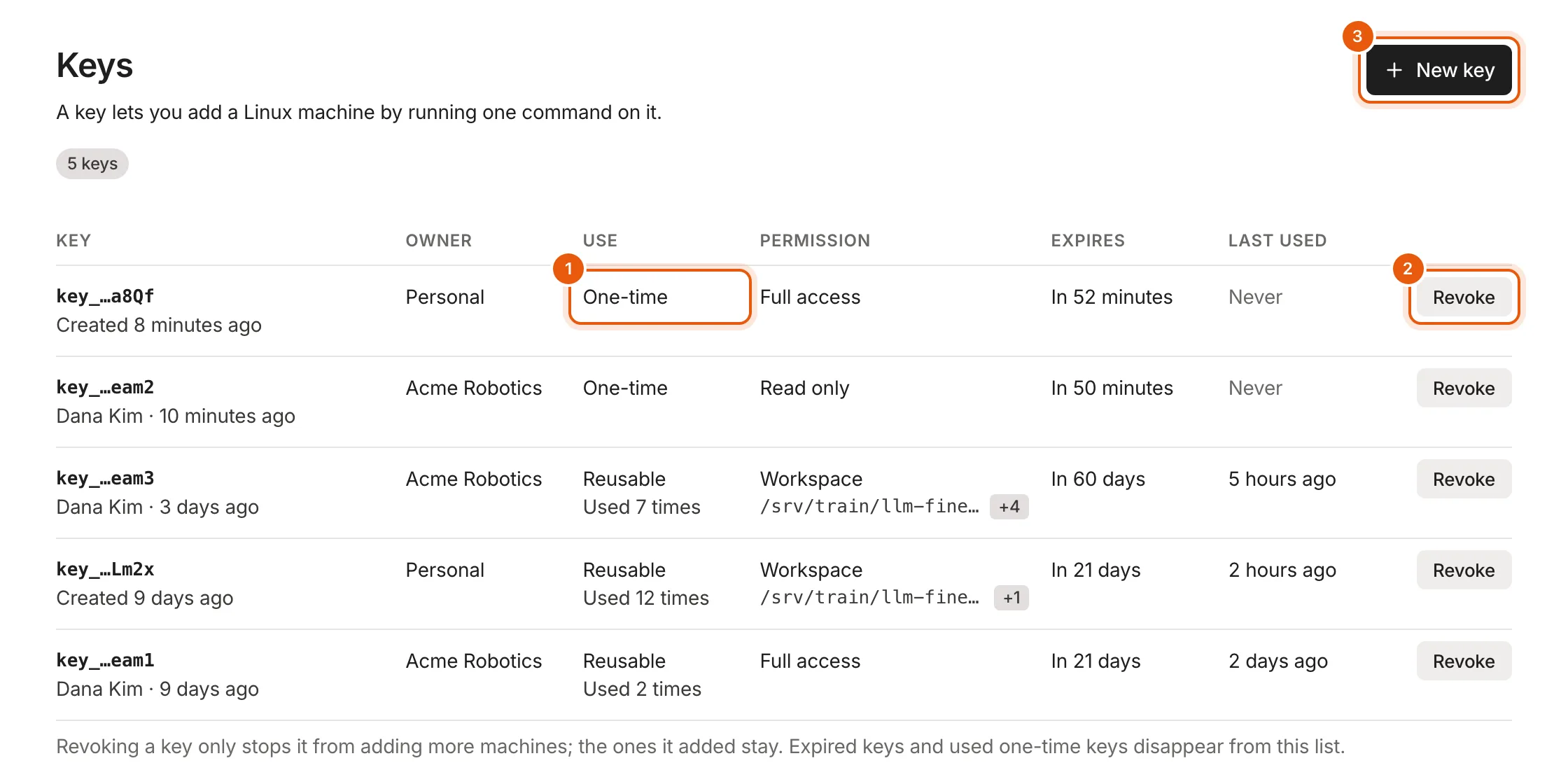
- Use: a one-time key adds one machine. A reusable key adds any number until it expires.
- Revoke stops a key adding machines. The machines it added stay.
- New key creates one, with the permission its machines start with.
The Console shows a key once, when you create it. Expired keys and used one-time keys leave the list.