Install
Install on a Mac
Add a Mac to your account with the Open Machine app, and choose what agents may do on it.
The Open Machine app adds your Mac to your account. On the Mac, the app is where you turn Open Machine on and off and choose what agents may do.
#Requirements
- A Mac with Apple silicon. The Download page shows the oldest macOS the current release runs on.
- An Open Machine account. Signing in to the app creates one if you have none.
#Install
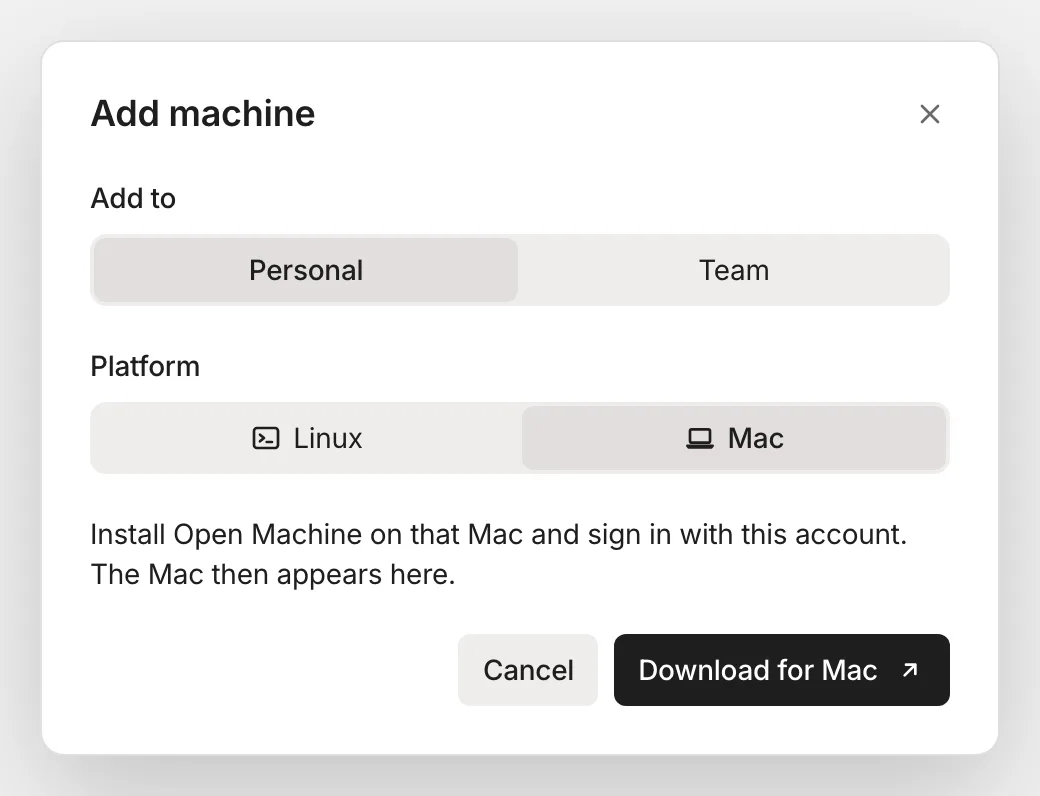
Download the app from Download on the Mac you want to add. In the Console, Machines → Add machine → Mac links to the same page.
- Open the app and sign in. A page opens in your browser to connect this Mac.
Choose where to add it, and select Connect:
- Personal: only you use it, and it connects with your other machines.
- Team: your team shares it. Only a team's admins can choose it. See Teams.
- Back in the app, choose this Mac's permission: Read only, Workspace or Full access. See Permissions.
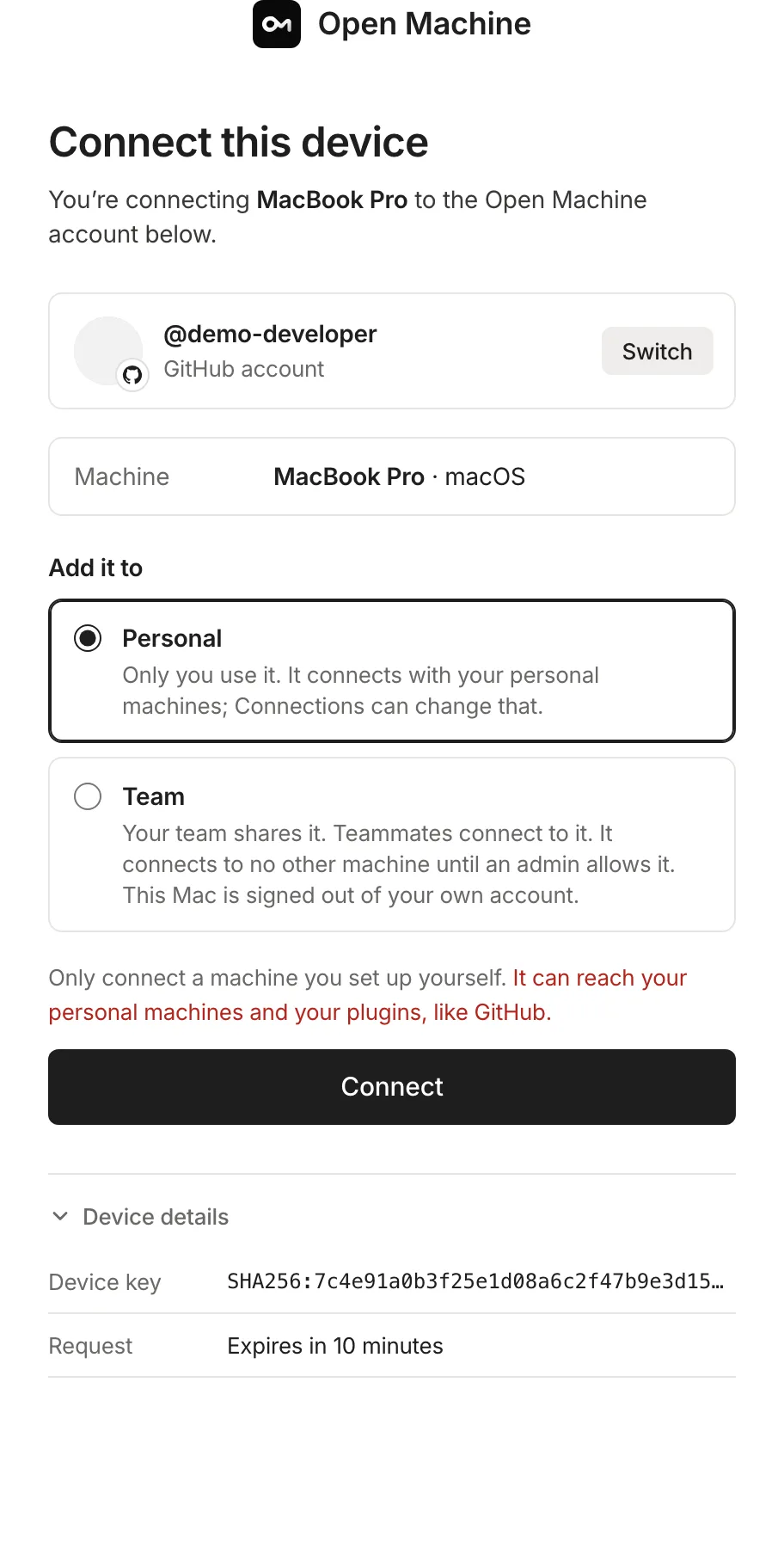
The Mac then shows under Machines in the Console.
#Turn it on and off
The app's switch connects and disconnects this Mac. Turning it off closes every connection into or out of this Mac within a second, and none opens until you turn it on again.
#Change the permission
A Mac sets its own permission, in the app. The Console shows it but cannot change it: its page says To change macOS permissions, use the Open Machine app on this Mac.
#Update
The Console marks a Mac whose app is out of date. To update, open the app on that Mac.
#Remove the Mac
Signing out in the app takes this Mac offline. It stays under Machines, marked offline, until you sign in again. To remove it from your account, use Manage → Remove machine on its page in the Console.