Teams and logs
Teams
Share machines with other people, and choose who can use each one and how.
A team is an account that people share. Its machines belong to the team, and its admins choose who may use each one. Your own machines stay yours: nobody in the team can use them.
#Create a team
In the Console, open Team and create a team with a name and a short name. You become its first admin.
The short name is part of every team machine's address, <machine>.<team>.om, such as gpu-01.acme.om. It cannot be changed or reused. You can be in one team at a time.
#People
Team → People lists everyone in the team.
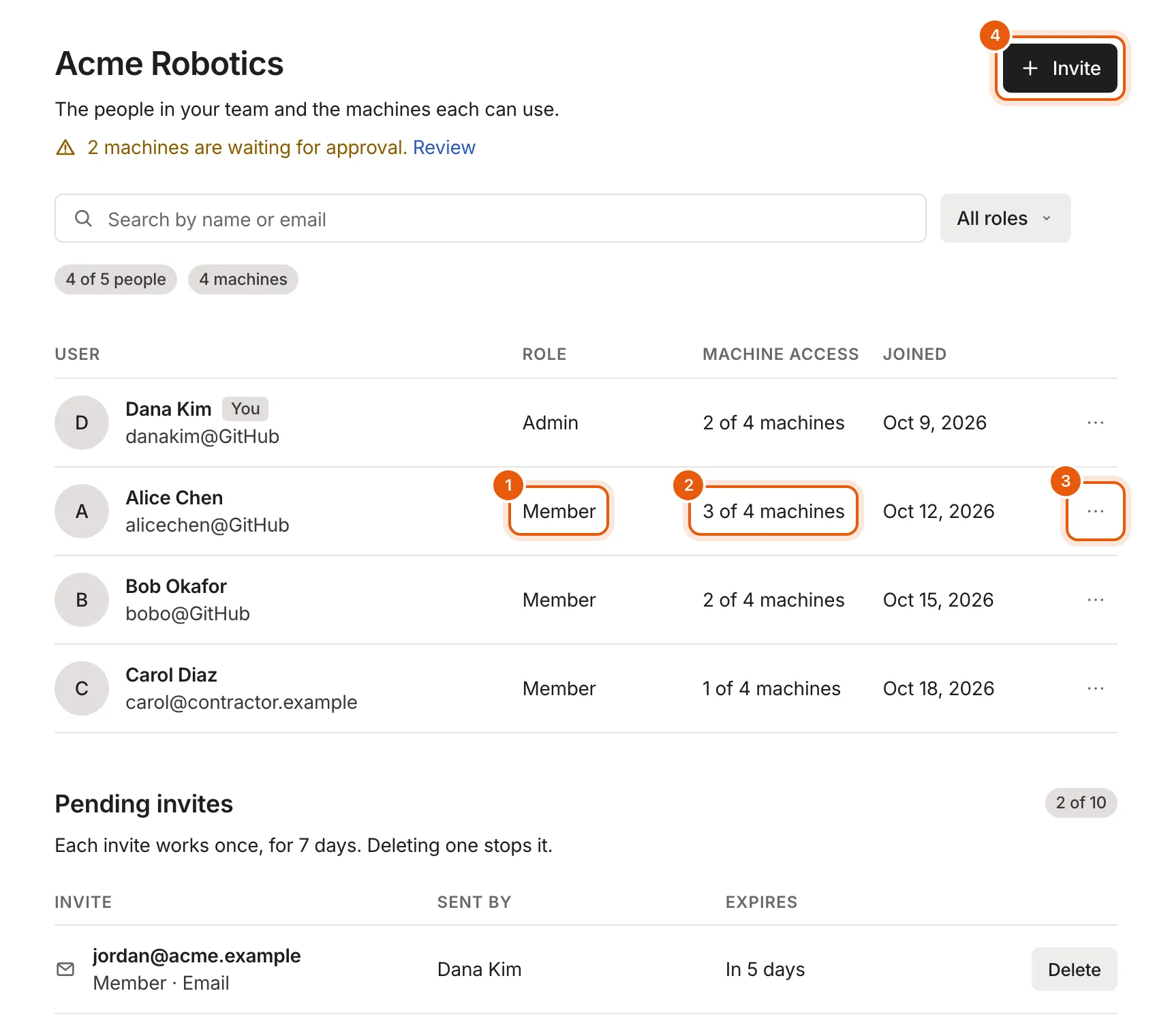
- Role: Admin or Member.
- Machine access: how many of the team's machines the person can use.
- The menu edits their machine access, changes their role, deactivates or removes them.
- Invite adds people.
| Role | Can |
|---|---|
| Admin | Manage everything: people, invites, keys, machines, rules, connections and logs. |
| Member | Use the machines they are given. Leave the team. |
Members see each other's names and roles. Only admins see email addresses and who can use each machine.
#Invite people
Select Invite, then choose how:
- Email, the default: type the person's email address, choose Member or Admin, and select Send invite. Open Machine emails them the invite, which only the account with that address can use.
- Link: choose the role and select Create link, then copy the link. It is shown only once. Send it to one person: the first to open it, signed in, joins.
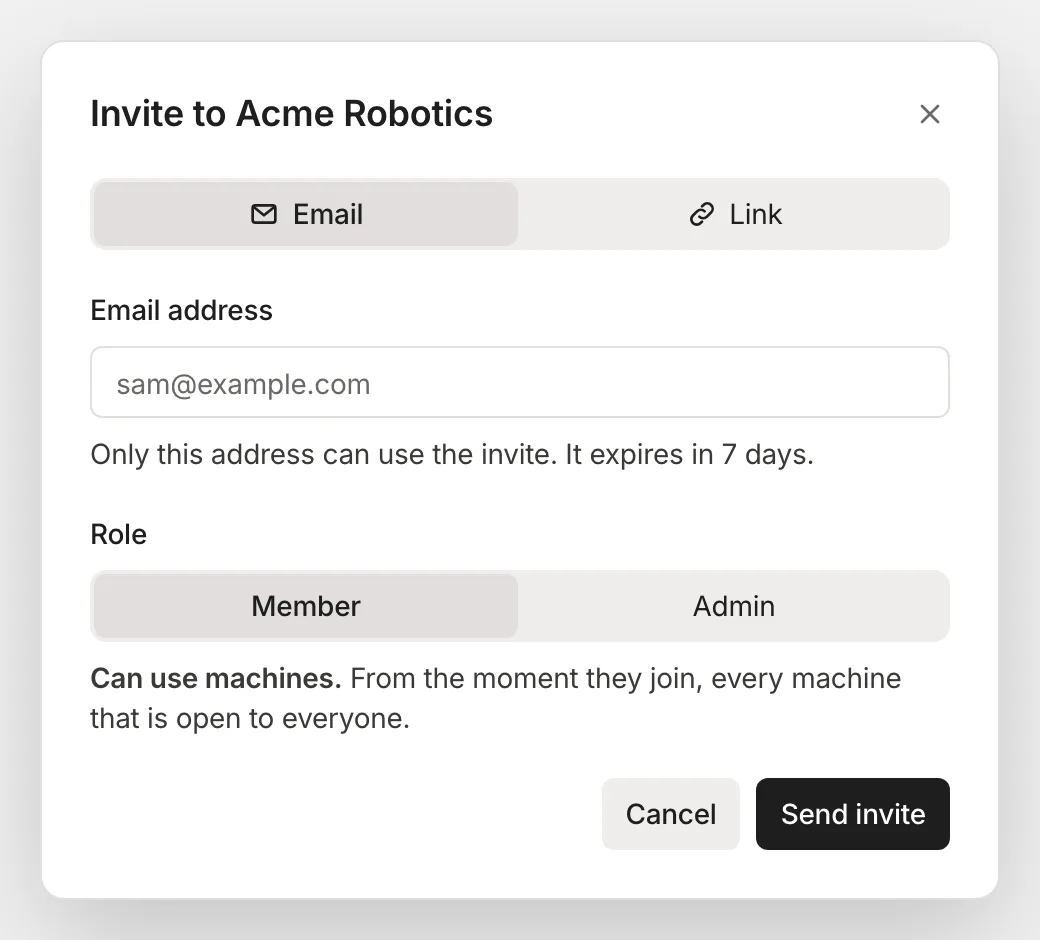
An invite works once, for 7 days, and Pending invites lists it until then. A team can email 20 invites in any 24 hours. If an email didn't go, the Console says so: delete the invite and send it again, or create a link. Until a link is used, anyone who has it can join: delete an unused one. If a link is lost, delete the invite and create another.
#Join a team
- From an email: select View invite and sign in with the account that uses the address the invite was sent to. Select Join. While you are in no team, Team shows the invite too.
- From a link: open it, sign in and select Join.
An emailed invite works only for an account whose verified email address is the one invited: with GitHub, your primary address. Signing in with email at the invited address always works. Another account sees No invite for this account: select Switch and sign in with the right one, or ask the admin for a link.
#Add machines to the team
- In Machines → Add machine, choose Team under Add to.
- On a machine's connect page, choose Team. Only admins can.
- Or Move a Linux machine from your own account. See Machines.
A new team machine is open to everyone in the team. Its address ends in .<team>.om.
Teammates reach a team machine from their own machines, once approved when the team approves new machines. A team machine connects to no other machine, not even another of the team's, until an admin allows it in Connections, and it never connects to a person's own machine.
#Choose who can use a machine
On a team machine's page, People sets who can use it, and how.
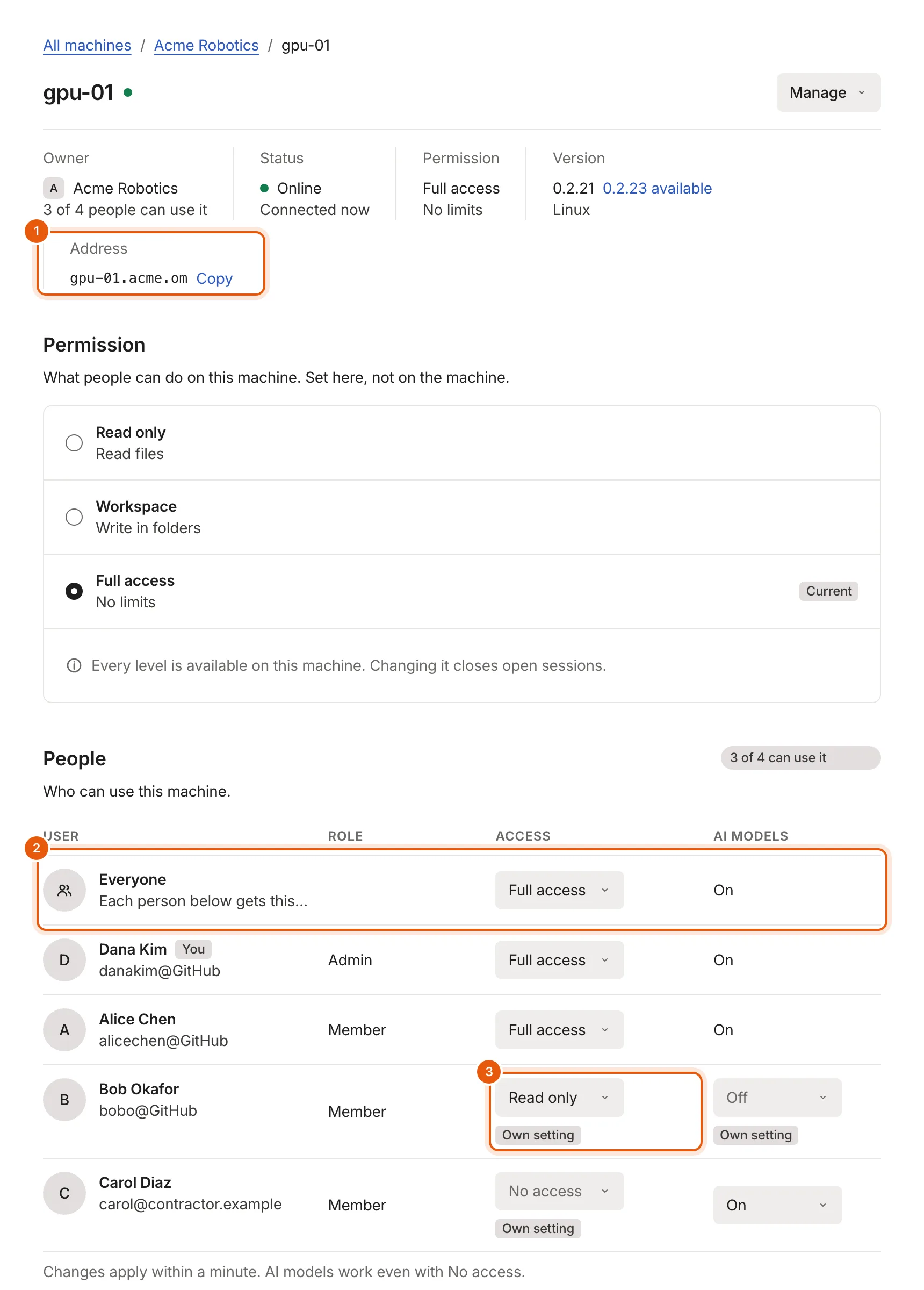
- Address is what teammates use with
ssh. - Everyone sets what each person gets by default.
- A person can have their Own setting, apart from everyone. Choose Same as everyone to undo it.
| Access | Meaning |
|---|---|
| The machine's level, such as Full access | Sessions run at the machine's own permission. |
| Read only | Sessions always run Read only, whatever the machine allows. |
| No access | The person cannot use or see the machine. |
AI models is a separate choice: it lets a person use the machine's models whatever their access. Services need Full access. Changes apply within a minute.
#Approve new machines
By default, a member's machine connects to the team's machines as soon as they sign in on it. An admin can choose instead that a new machine waits for approval, and can block any member's machine. Team → Personal machines, for admins only, lists the machines your team members connect from.
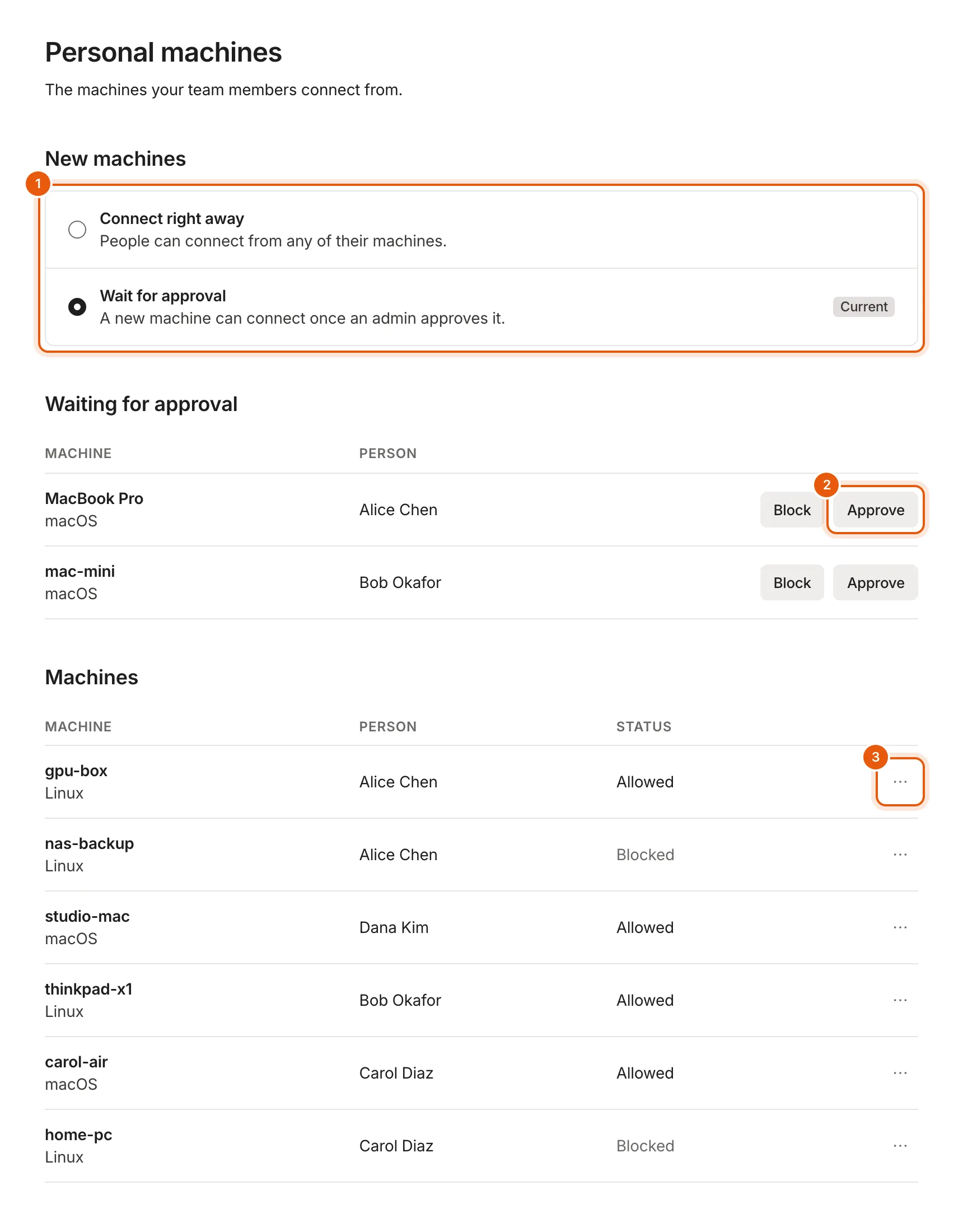
- New machines: Connect right away lets people connect from any of their machines. Wait for approval makes a new machine wait until an admin approves it; every machine that connects when you turn it on keeps working. Turning it off lets waiting machines connect; blocked machines stay blocked.
- Approve lets a waiting machine connect. Block keeps it out.
- The menu of a machine has Block… or Unblock.
A machine is listed once it could connect to one of the team's machines, or use their AI models. Admins see its name, its system and whose it is, nothing else of it. To keep a machine that has no decision yet off the list, its owner sets its Connections so it doesn't connect to the team's machines.
A member does nothing: a new machine is listed by itself, and its own page in the Console says Allowed, Waiting for approval or Blocked. Changes apply within a minute.
Block stops that machine's own connections to the team's machines and closes what it has open there. It does not stop the person:
- A lost or stolen machine is removed by its owner, with Remove on its page. It then connects nowhere.
- To cut a person off from the team, Deactivate or remove them.
- A blocked machine still reaches its owner's other machines, as their Connections allow, and a session there can go on to the team's machines from a machine that is allowed.
A removed machine that signs in again is a new machine: it connects at once, or waits when the team approves new machines.
#Team settings
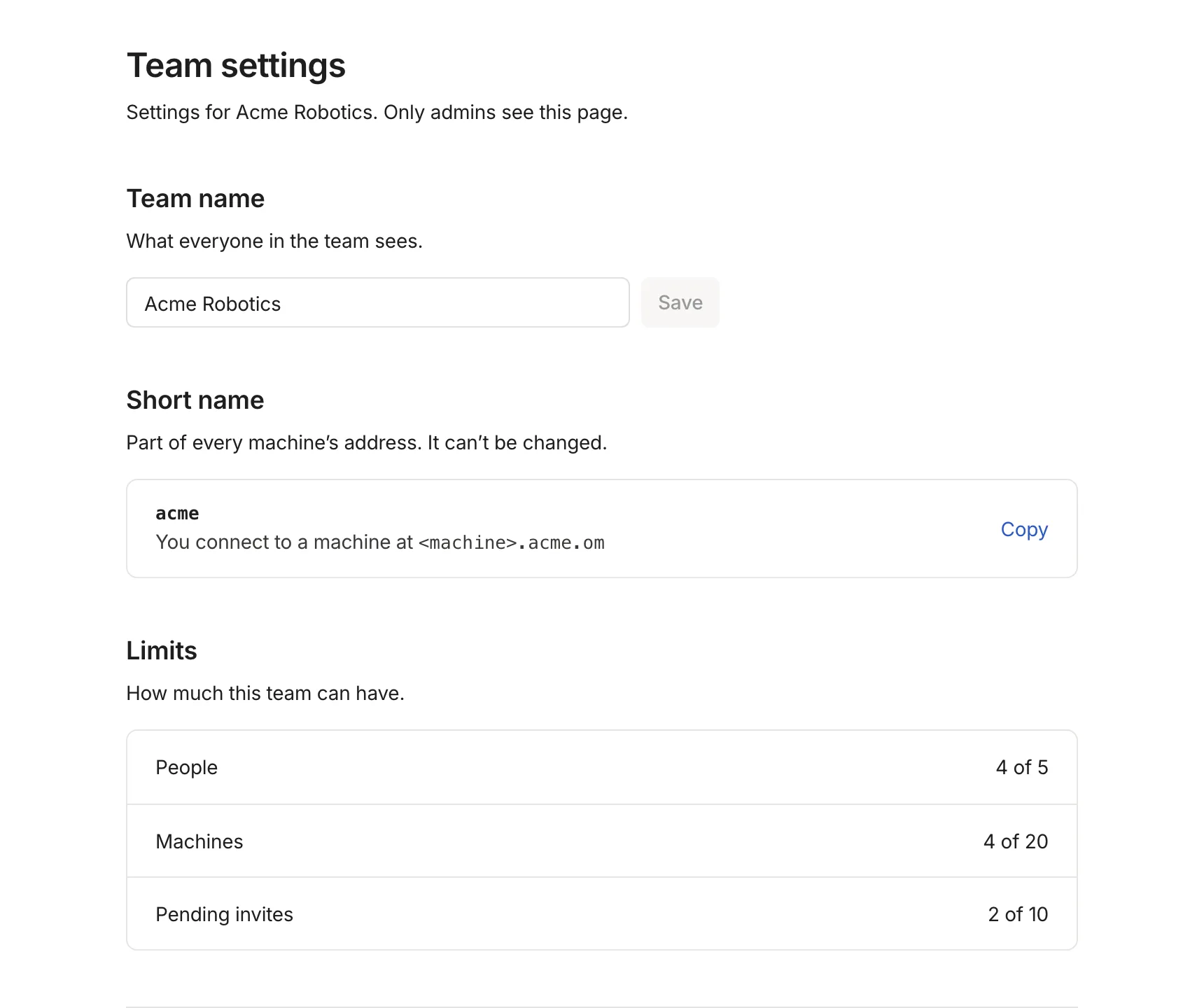
Team → Settings, for admins only, holds the team's name, its short name and its limits.
#Leave, deactivate or remove
- Deactivate keeps everything but stops a member using team machines until an admin reactivates them.
- Remove takes a member out of the team. Removing an admin, or making them a member, also deletes their invites and revokes their keys.
- A team always has an admin. To leave as the last admin, make someone else admin first, or delete the team. Deleting a team removes its machines.
#Emails
Open Machine emails people when a change alters what they can use. Each email says what happened, with one button that opens the Console. It never holds a sign-in link or a key. The person who made the change gets none, except the owner of a new machine.
| When | Who gets an email |
|---|---|
| An admin invites an address | That address |
| Someone joins with an invite | The admin who sent it |
| A machine is added to your own account | You, even if you added it |
| A machine is added to the team | The team's admins |
| A member's new machine waits for approval | The team's admins |
| An admin removes someone | The person removed |
| An admin changes someone's role | That person |
| An admin deactivates or reactivates someone | That person |
| An admin deletes the team | Everyone else in it |
An invite goes to the address typed; every other email goes only to verified addresses: with GitHub, your primary one. Every email is about your own access, so none can be turned off. Leaving a team, signing in again on a machine, moving one, and approving or blocking one send no email.