Install
Install on Linux
Add a Linux machine with one command, from the Console or with a browser sign-in.
One command installs Open Machine and adds the machine to your account. On Linux, the om command is the whole product: there is no app.
There are two ways. Both run the same installer.
| Way | Use it when |
|---|---|
| From the Console | You are signed in to the Console somewhere. The command carries a one-time key, so the machine joins with no browser. |
| With a browser sign-in | You start on the machine. It prints a link you approve in a browser. |
#Requirements
- An x86_64 or aarch64 processor.
- glibc 2.17 or later. Alpine and other musl systems are not supported.
curlorwget.- The OS user agents should work as. Install as that user, without
sudo.
#From the Console
- In the Console, open Machines → Add machine.
Choose the options:
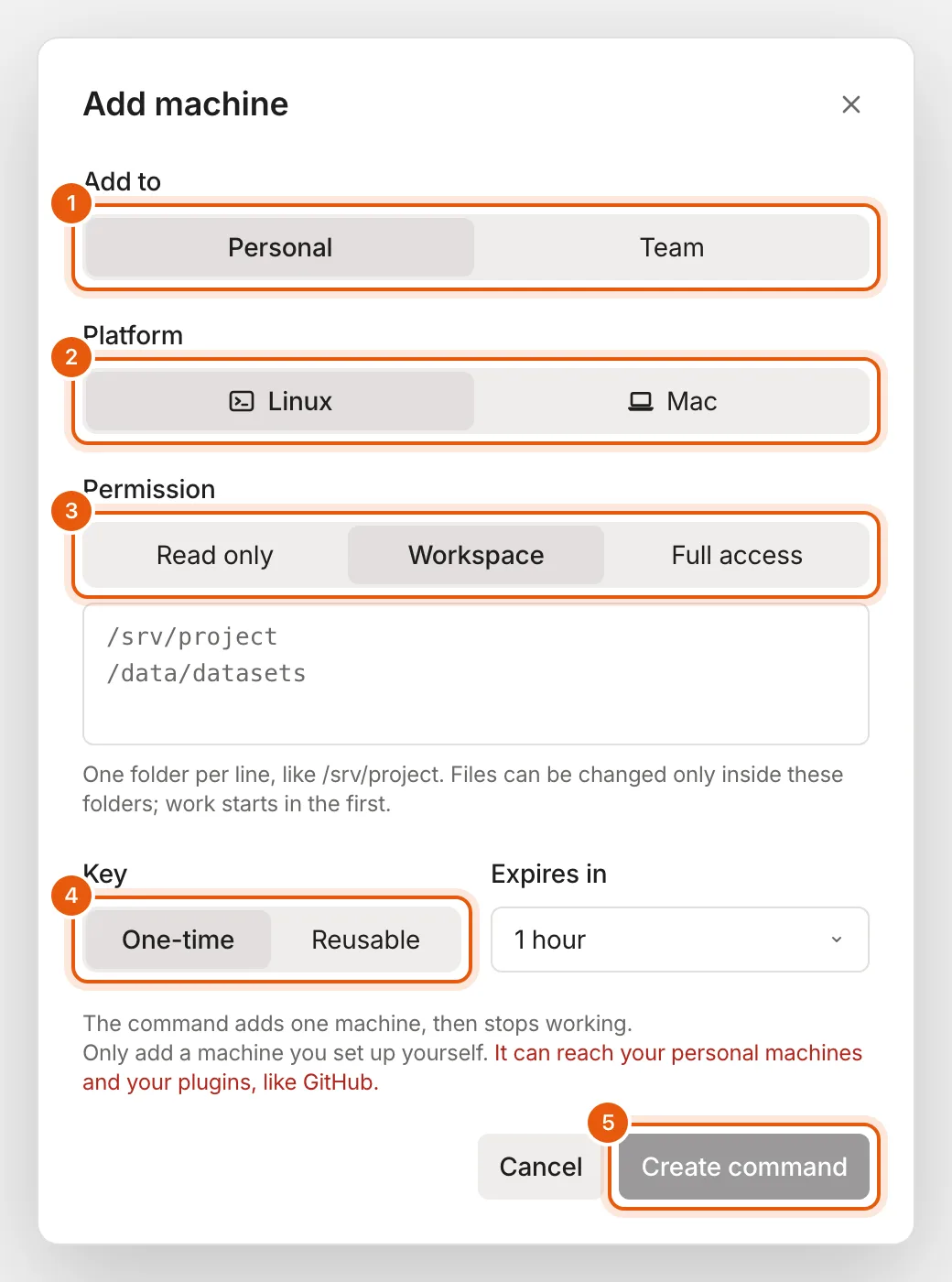
Add machine, for a Linux machine. - Add to: your own account, or your team's if you are its admin.
- Platform: Linux.
- Permission: what agents may do on the machine. Workspace asks for its folders, one per line. See Permissions.
- Key: One-time adds one machine. Reusable adds any number until it expires. Expires in sets when.
- Select Create command.
Copy the command. It is shown only once.
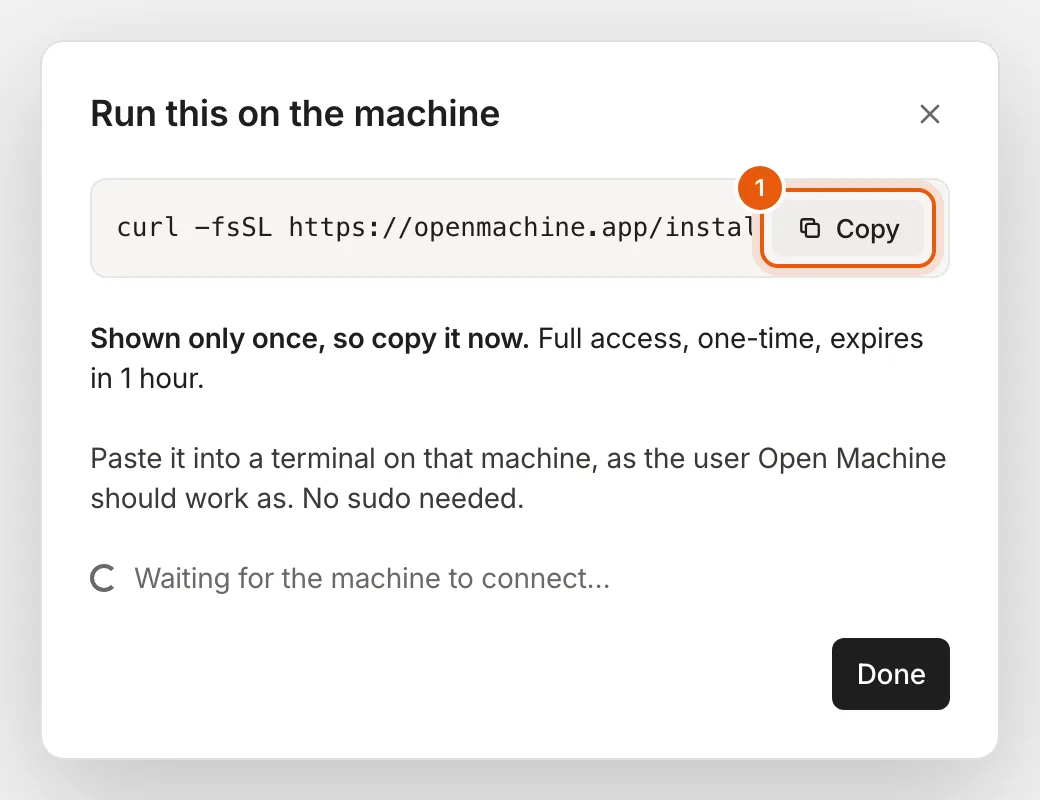
- Paste it into a terminal on the Linux machine, as the user Open Machine should work as. The dialog says when the machine has connected.
#With a browser sign-in
On the machine, run:
Shell curl -fsSL https://openmachine.app/install.sh | sh
It prints a link:
Output Open this link in a browser to connect this machine: https://…
- Open the link in a browser where you are signed in to Open Machine. The page shows the machine's name and where the request came from. Check that both are yours.
Choose Personal or Team, and Read only or Full access, then select Connect. Under Device details, the page shows when the request expires.
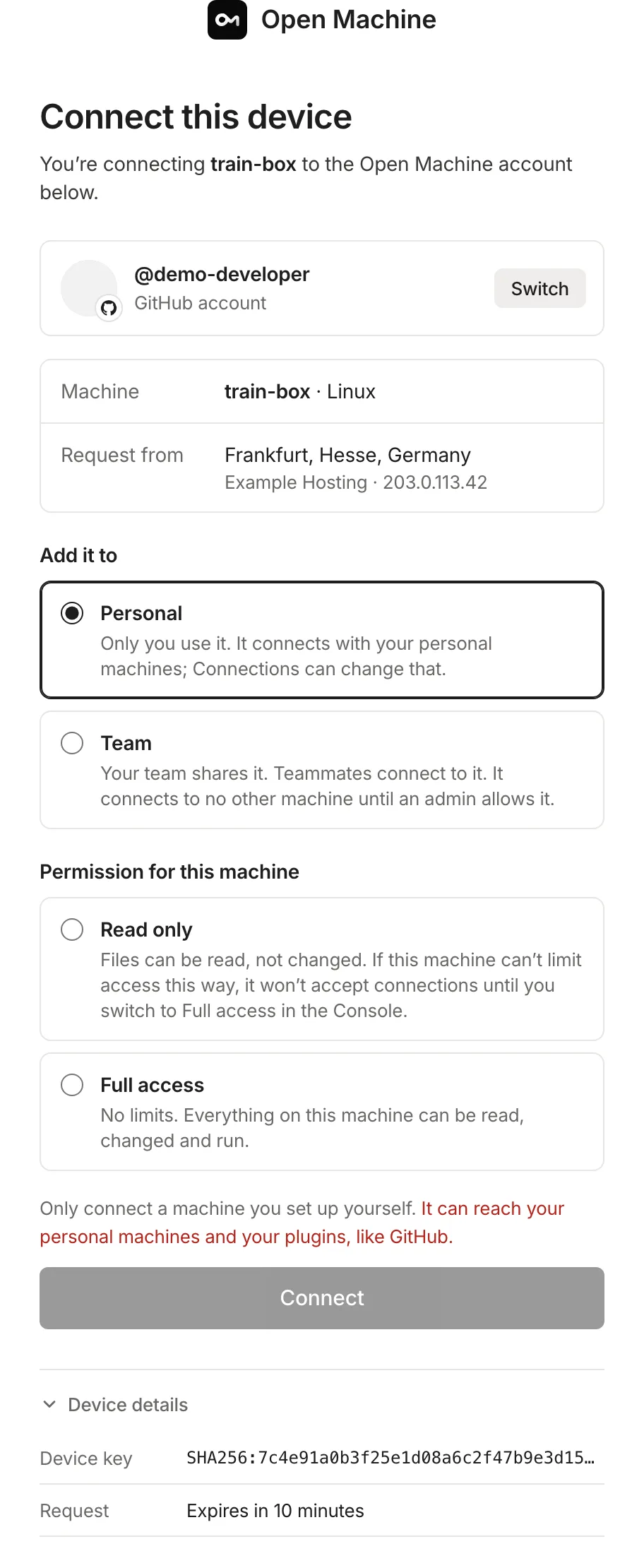
Check the machine and where the request came from before you connect it.
Check the machine:
Shell om statusOutput Connected Name: train-box Alias: train-box.om User: dev Account: demo-developer Permission: Read only Version: 0.2.31
#Install options
The command from the Console already holds its key. To use a key in your own scripts, pass it to the installer:
curl -fsSL https://openmachine.app/install.sh | sh -s -- --key-file ~/om.key| Option | What it does |
|---|---|
--key KEY | Joins with a key from the Console. |
--key-file FILE | Reads the key from a file. |
--name NAME | Names the machine. |
--no-up | Installs without connecting. Run om up later. |
Machines → Keys lists the keys that can still add machines, with their permission and expiry. Revoke stops a key adding machines; the machines it added stay. See Machines.
#Where it runs
The installer sets up a user service, so om keeps running after you log out. On a machine with no service manager, it starts when you open a shell, and om install says so.
#Updates
Updates install themselves. To install the latest release now, run om update. To turn automatic updates off, run om set auto-update off. The machine's page in the Console also offers Update now when a newer version exists.
#Remove
om uninstallThis removes the machine from your account and deletes Open Machine's files. Programs already running keep running.
#Next steps
- Choose what agents may do
- [Every
omcommand](/docs/reference/om) - If the install fails